Release 7.6 - Google Drive Integration

This release makes it faster to get media into Playlister and easier to create polished slides in Studio. Here’s what’s new.
☁️ Google Drive Integration
You can now import media directly from Google Drive into Playlister. No more downloading files to your computer first. No more re-uploading. No more duplicate storage steps.
What You Can Do
- Connect your Google Drive account
- Browse folders inside Playlister
- Search Drive files instantly
- Select and import media directly into your Media Manager
Whether you store sermon graphics, kids visuals, announcement slides, or worship assets in Drive, you can now pull them into Playlister in seconds.
Why This Matters
Many churches use Google Drive as their central content hub. Now Playlister works seamlessly with it.
Less friction.
Fewer steps.
Faster Sunday prep.
To get started:
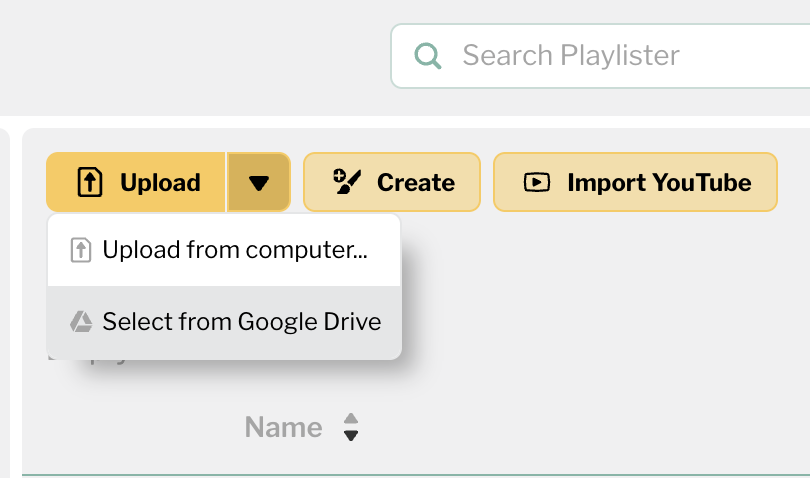
- Click Upload chevron
- Select Select from Google Drive
- Choose your files and import
⚠️ Important: Browser Settings Required
The Google Drive import feature requires third-party cookies to be enabled in your browser. If third-party cookies are blocked, you may see an error after selecting your Google account that says:
“There was an error! The API developer key is invalid.”
This typically happens in:
- Firefox (default privacy settings)
- Incognito or Private browsing modes
- Browsers with strict tracking protection
- Ad-blocking extensions
This setting is controlled by your browser and cannot be adjusted from within Playlister. If you encounter this issue, enabling third-party cookies should resolve it.
How to Enable Third-Party Cookies
Google Chrome (Desktop)
- Click the three-dot menu in the top-right corner and select Settings.
- Go to Privacy and security.
- Click Third-party cookies.
- Select Allow third-party cookies, or
- Add [*.]playlister.app under Sites allowed to use third-party cookies.
Microsoft Edge (Desktop)
- Click the three dots in the top-right corner and select Settings.
- Select Cookies and site permissions.
- Click Manage and delete cookies and site data.
- Turn off Block third-party cookies.
Safari (Mac)
- Click Safari in the top menu bar and choose Settings (or Preferences).
- Click the Privacy tab.
- Uncheck Block all cookies and/or Prevent cross-site tracking.
Safari (iPhone / iPad)
- Open the Settings app.
- Scroll down and tap Safari.
- Under Privacy & Security, toggle off Block All Cookies.
- Toggle off Prevent Cross-Site Tracking.
Firefox (Desktop)
- Click the menu button (three lines) and select Settings.
- Click Privacy & Security.
- Under Enhanced Tracking Protection, choose Custom and ensure “Cookies” is not set to block all third-party cookies.
- Alternatively, click the shield icon in the address bar and disable protection for Playlister.
✍️ Studio Text Update
We’ve improved the way text works inside Studio to make slide creation smoother and more intuitive.
What’s Improved
- Cleaner text editing experience
- More responsive formatting controls
- Improved consistency when adjusting font size and styling
- Better alignment behavior when working with templates
These updates reduce friction when editing existing slides or building new ones. If you use Studio weekly for announcements, kids ministry slides, sermon graphics, or motion backgrounds, you’ll notice a smoother workflow immediately.
Why 7.6 Matters
Playlister 7.6 focuses on removing friction in two key areas:
- Getting media into your account
- Creating and editing slides faster
The less time you spend downloading, uploading, and formatting, the more time you get back for ministry. As always, if you have feedback on Google Drive or Studio updates, we’d love to hear from you. Thanks for building with us.
— The Playlister Team
-

Thanks for updates to improve Studio, We are using it more & more each week!
0
Please sign in to leave a comment.
Comments
1 comment