Release 7.19 - Clock, Text & Date Overlay

Display a real-time clock, date, and custom text on top of any content playing on your screens.
Info Overlay adds a persistent, unobtrusive overlay to your Apple TV displays — showing the current time, today's date, and custom text of your choosing. It works on top of everything: slides, lyrics, videos, and live streams.
This feature was born from a direct request by Life.Church, who needed a way to show accurate local time on their staff digital signage screens. Crossroads also helped shape the feature by requesting the ability to control the overlay on a per-slide basis, so you can show it on some content and hide it on others.
What You Can Display
- Clock — real-time, 12-hour format, updates every minute, pulled from your Apple TV's local time
- Date — today's date
- Custom Text — any message you want ("Welcome!", a campus name, service info, etc.)
Toggle each one independently. Show all three, just the clock, or any combination.
Two Display Themes
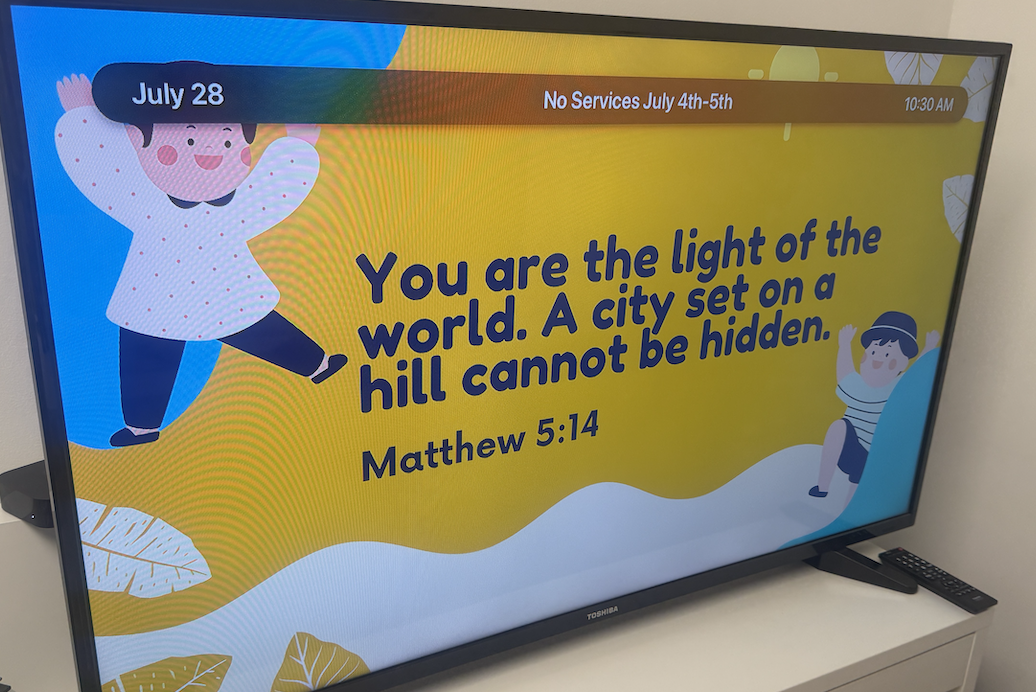
Basic Theme (on): A slim bar across the top of the screen with date on the left, your custom text centered, and the clock on the right. Clean and visible against any background.
Basic Theme (off): A floating pill in the corner of the screen — minimal and subtle. Great when you want the time available but don't want it competing with your content.
Always Visible Option
By default, the overlay appears briefly then fades. Turn on Always Visible to keep it on screen permanently — ideal for lobby signage, staff displays, or any screen where knowing the time matters continuously.
Watch How to Set It Up
Important: You need the latest tvOS app update for Info Overlay to appear on your screens. Make sure your Apple TVs are running the most recent version of the Playlister app from the App Store before getting started.
Setting Info Overlay on a Playlist
- Open the Playlist Manager in your Playlister dashboard
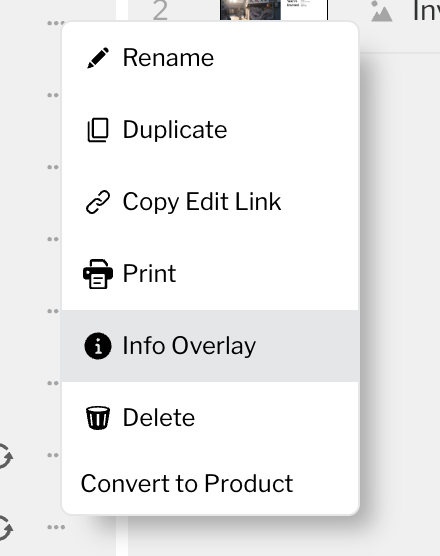
- Right-click (or tap the three-dot menu) on any playlist
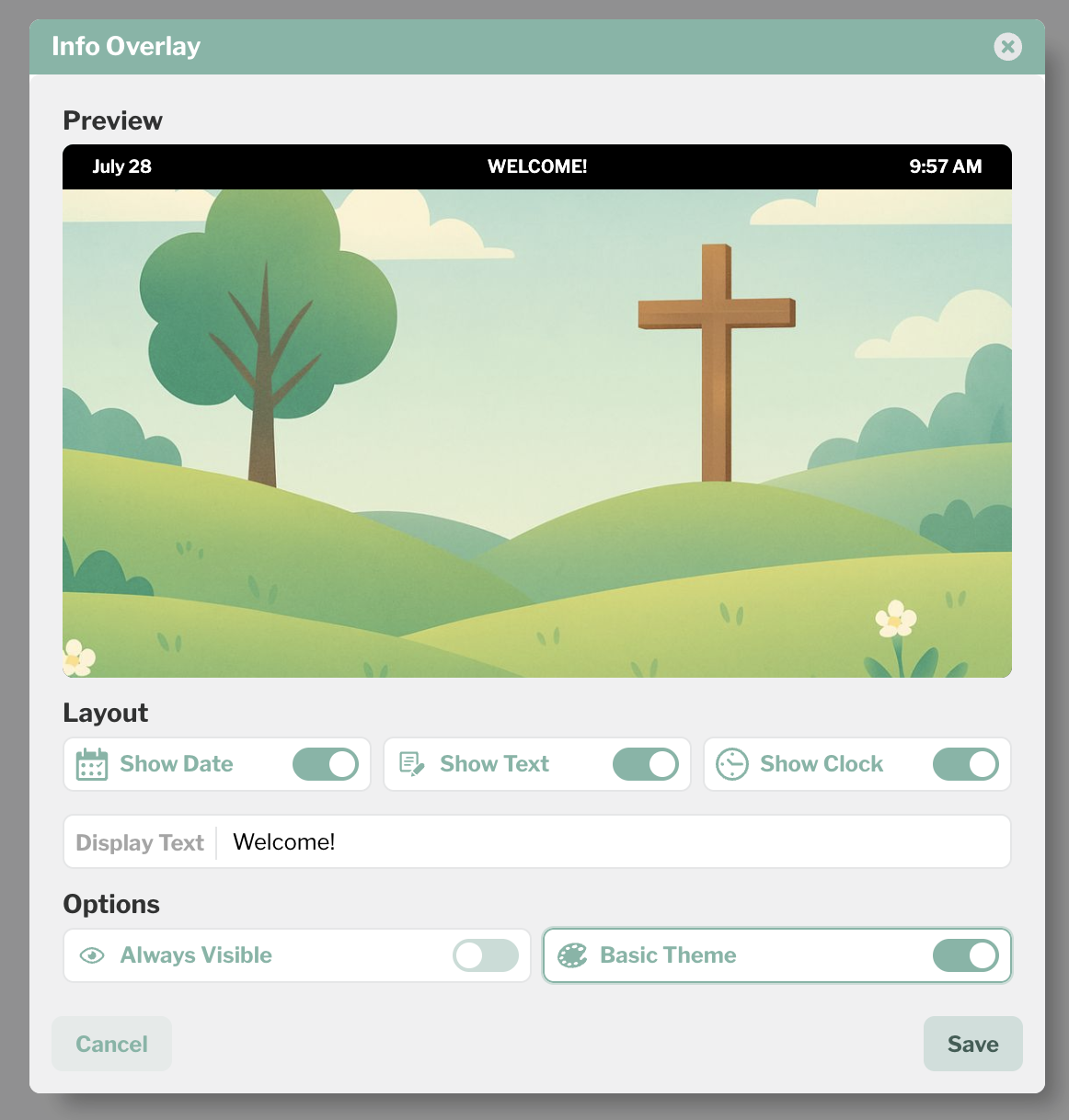
- Select Info Overlay
- In the overlay panel, toggle on the elements you want: Show Date, Show Text, Show Clock
- If you turned on Show Text, type your message in the Display Text field
- Choose your look: Basic Theme on for the top bar, off for the floating pill
- Toggle Always Visible if you want it persistent
- Hit Save
The overlay goes live on your screens immediately.
Setting Info Overlay on an Individual Slide
Want the overlay on some slides but not others? You can control it per slide:
- In the Playlist Manager, find the slide within your playlist
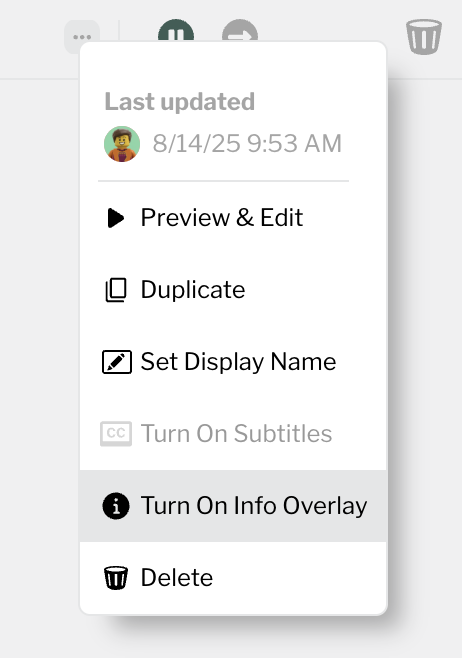
- Tap the three-dot menu on that specific slide
- Select Turn On Info Overlay (or Turn Off Info Overlay to disable it)
This gives you precise control — show the clock during announcement loops but hide it during worship lyrics, for example.
Use Cases
Staff signage & lobby screens — Keep a visible clock on screens throughout your building so staff and volunteers always know the time. Life.Church uses this across their campuses for exactly this purpose.
Worship services — Tech teams and pastors can glance at the main screen to stay on schedule without checking a phone or a separate clock.
Kids ministry — Display a custom message ("Check-in Open!") alongside the time so volunteers know when transitions are happening.
Multi-campus — Each Apple TV pulls its own local time, so campuses in different time zones display the correct time automatically. No server configuration needed.
Requirements
- Latest version of the Playlister tvOS app (update via the App Store on your Apple TV)
- Info Overlay must be enabled for your organization — reach out to support if you don't see the option
Please sign in to leave a comment.
Comments
0 comments